How do I use the Wiozen API with AI Engine?
Add Wiozen as a provider in the AI Engine plugin for WordPress; the free version is enough.
What is AI Engine?
AI Engine is a plugin that connects WordPress to AI models. It is developed by Jordy Meow (Meow Apps) and has more than 90,000 active installs on wordpress.org. It is not an AI by itself: you enter a provider's API key, and the plugin makes that model usable inside WordPress.
With the plugin you can:
- Chatbot: add an assistant that talks with your site's visitors.
- Content and image tools: draft posts, generate titles, summaries, and images, with help inside the post editor.
- Playground: a chat screen in the admin panel where you can try the model directly.
- Forms, knowledge base, and developer tools: AI-powered forms, answers based on your own content, and REST endpoints.
AI Engine comes with ready-made connections for providers such as OpenAI, Anthropic, and Google. It also has a connection type called “Custom (OpenAI-Compatible)”, which accepts any address that speaks the OpenAI format. Because the Wiozen API works in this format, it can be added to AI Engine as a provider.
Why use Wiozen?
- One key, many models. Instead of opening a separate account and bill with each provider, you switch between the models in the list with a single Wiozen key.
- Pay as you go. No subscription; you add balance, and spending is charged per token.
- One dashboard, direct support. Balance, usage, and keys in one place.
Requirements
- A WordPress site with AI Engine installed (the free version is enough).
- A Wiozen account and an API key (starts with
sk-gw-). If you don't have an account, you can create one here.
Setup
1. Open the AI Engine settings
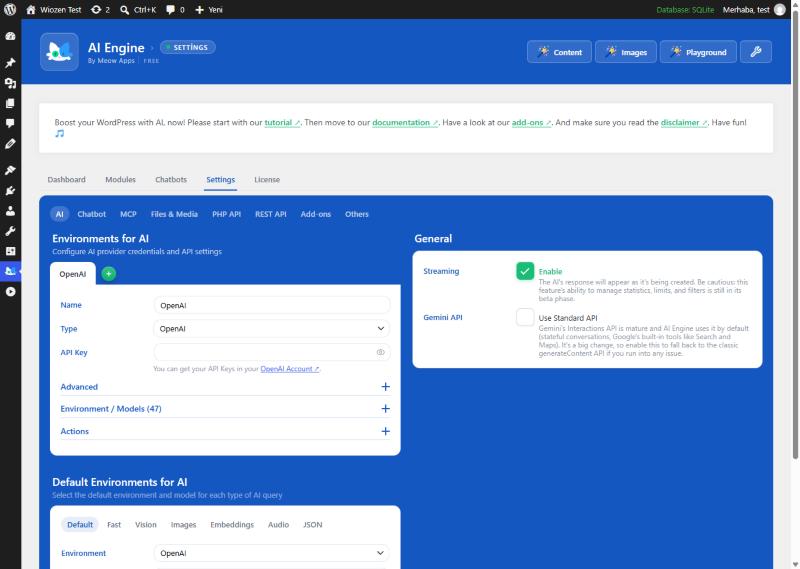
In the WordPress dashboard, go to Meow Apps → AI Engine and switch to the Settings tab at the top. On the left side of the page you will see the Environments for AI section; at first, it only has the “OpenAI” environment.
2. Add the Wiozen environment
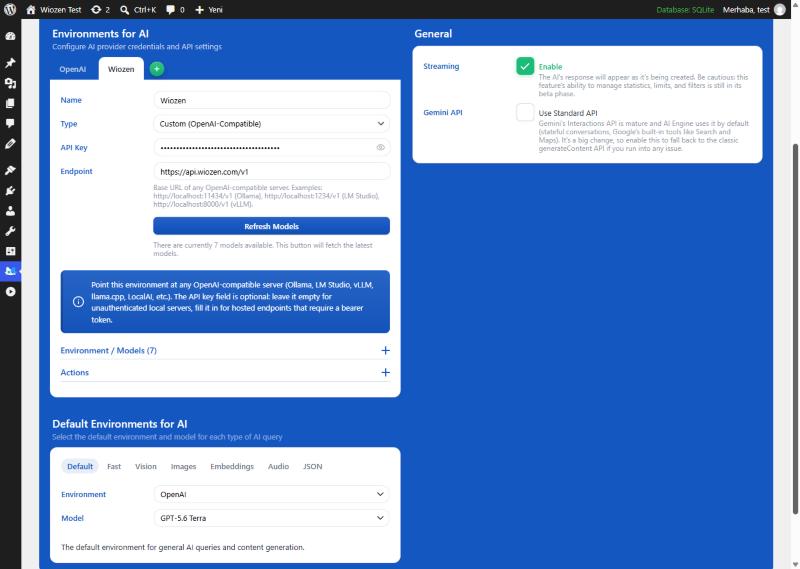
Click the green + button next to the “OpenAI” tab. In the new environment that opens, fill in the fields like this:
| Field | Value |
|---|---|
| Name | Wiozen |
| Type | Custom (OpenAI-Compatible) |
| API Key | Your Wiozen API key |
| Endpoint | https://api.wiozen.com/v1 |
The address must end in /v1. Do not add /chat/completions; AI Engine adds it itself.
3. Fetch the models
Click Refresh Models. A few seconds later, you should see a line below the button like “There are currently 7 models available” (the number depends on the models enabled for your account).
4. Make Wiozen the default
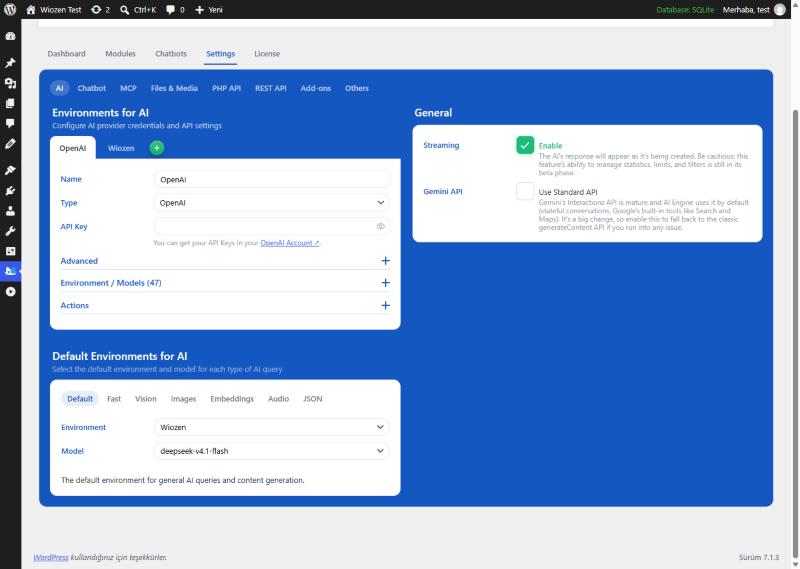
Further down the same page is the Default Environments for AI section. On the Default tab:
- Environment:
Wiozen - Model: the model you want to use (in this example,
deepseek-v4.1-flash)
If you make the same selection on the Fast and JSON tabs, the plugin's quick tasks also go through Wiozen. Settings are saved automatically.
5. Try it
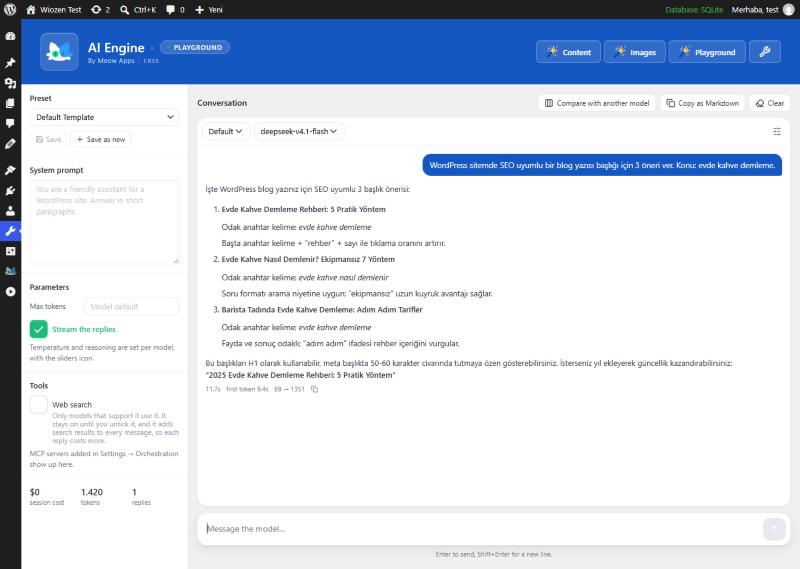
Open Tools → Playground (the Playground button at the top of the AI Engine pages leads to the same place). You will see the name of the model you selected at the top. Type a question and press Enter; the reply appears on screen as it is written.
Common issues
“Refresh Models” shows zero models.
https://api.wiozen.com/v1 (with no trailing slash or other path) and that the key was pasted correctly. If the key was revoked, create a new one in the dashboard.AI Engine shows a cost of “$0”.
No reply, or an error.
What we tested and what we did not
The steps in this guide were tried one by one on October 13, 2026, with AI Engine 3.8.4 (free version) and WordPress 7.1.3. The screenshots are from that test.
- Tested: adding the environment, the model list loading, selecting the default environment, and a streamed chat reply (shown as it is written) in the Playground.
- Not tested: AI Engine's image generation, embeddings, the on-site chat bot, and paid-version features. These use the same environment, but they were not tested separately when this guide was written.
Looking for a ready-made content bot?
AI Engine is a general-purpose toolkit. If you only want to automate the job of finding topics, researching them, writing the article, generating its image, and publishing, see our free plugin built for that: Wiozen Content Bot.
Which model name should I enter?
Only the names on the models page are accepted. Prices per 1 million tokens are listed there too. Any other model name returns 400.
Related guides
- How do you connect an OpenAI-compatible API to a tool you already use?
- How do you generate images with an AI API, and what does one image cost?
- My AI API returns "401 Invalid API key": why isn't my key accepted?
Other guides: Cline · Roo Code · Kilo Code · Cursor · Continue · Claude Code · Hermes Agent · OpenCode · Aider · Qwen Code · Open WebUI · LibreChat